Member guide
Everything you can do, step by step
Maple Deals gathers Canadian deals all day and keeps them in one place.
Here is everything you can do with it, one short step at a time.
Quick start
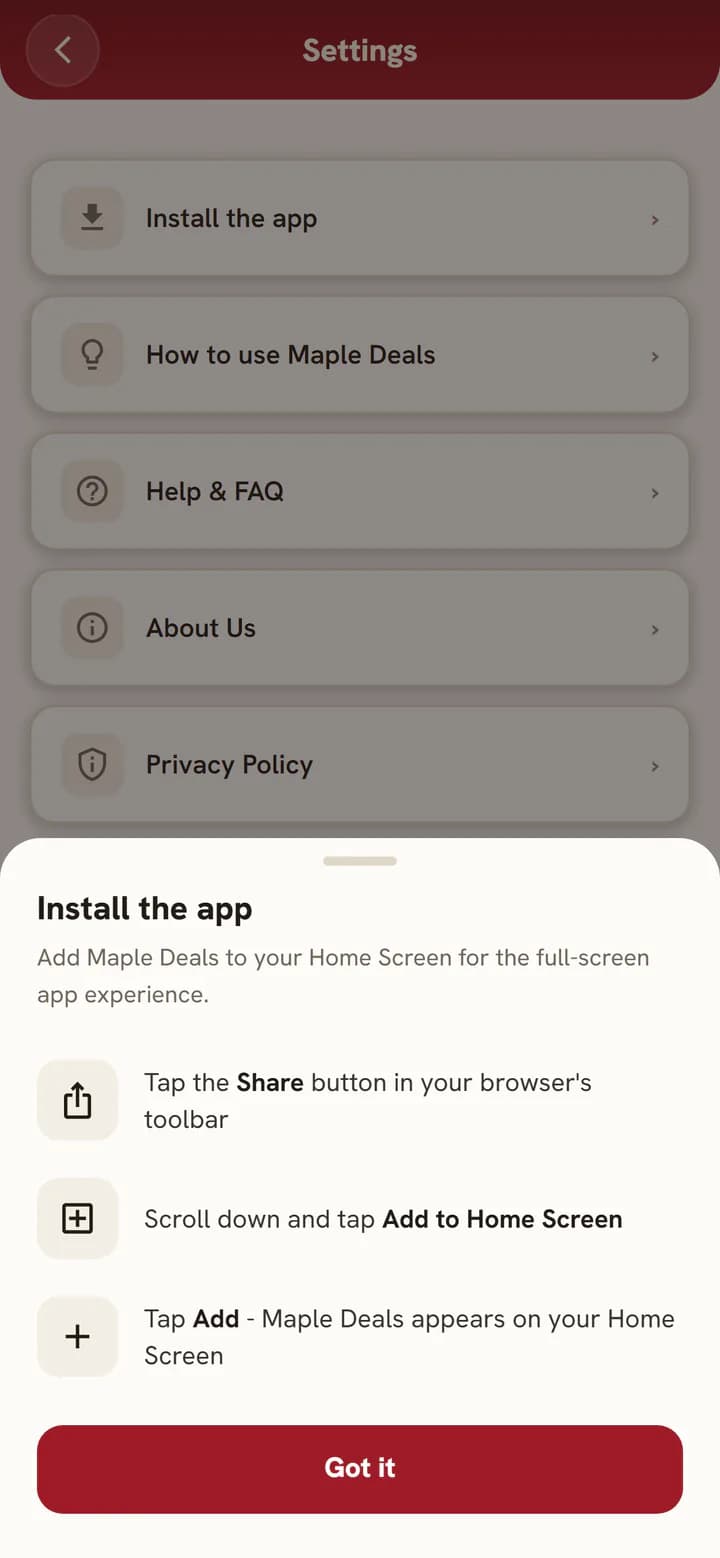
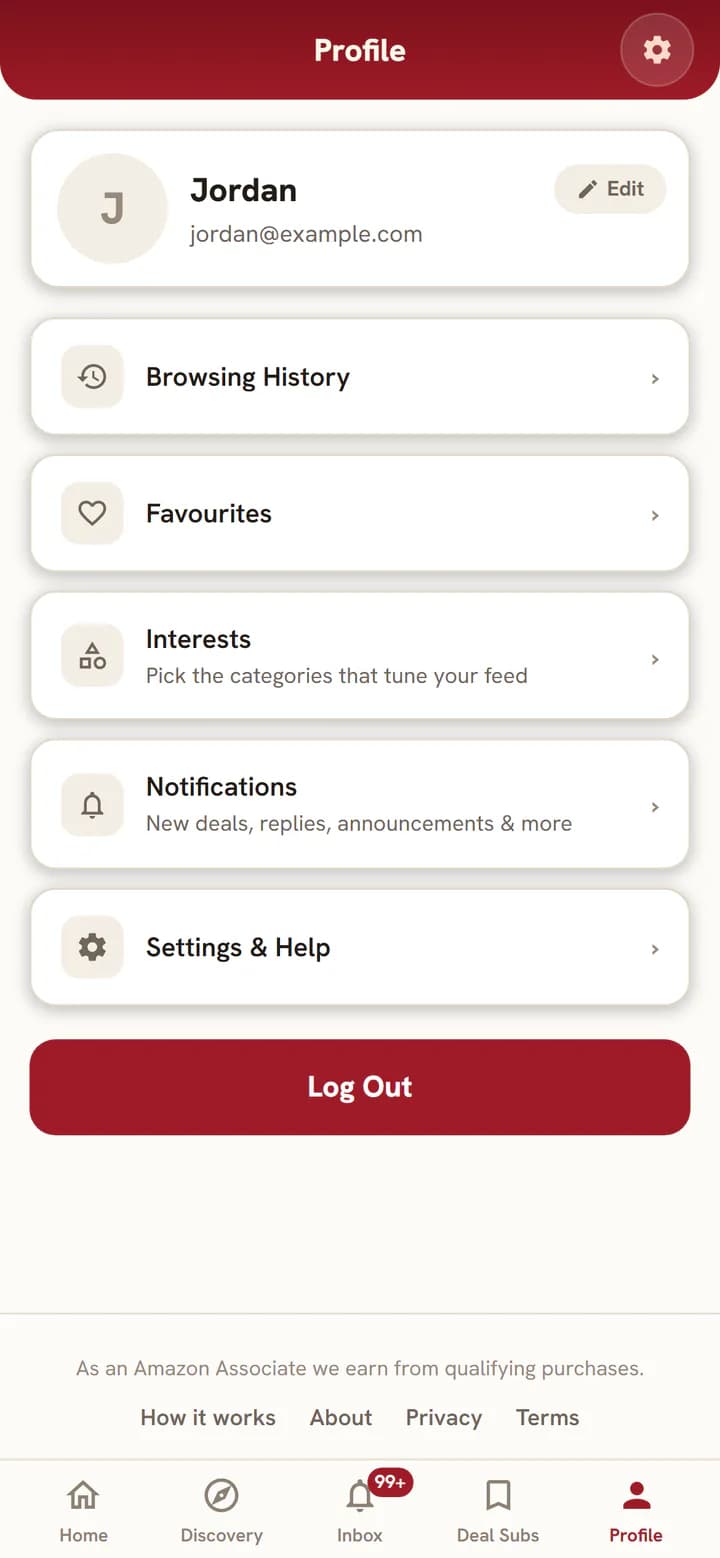
- Add Maple Deals to your home screenIt opens like an app, with no app store needed. The steps are in Profile, then , then .
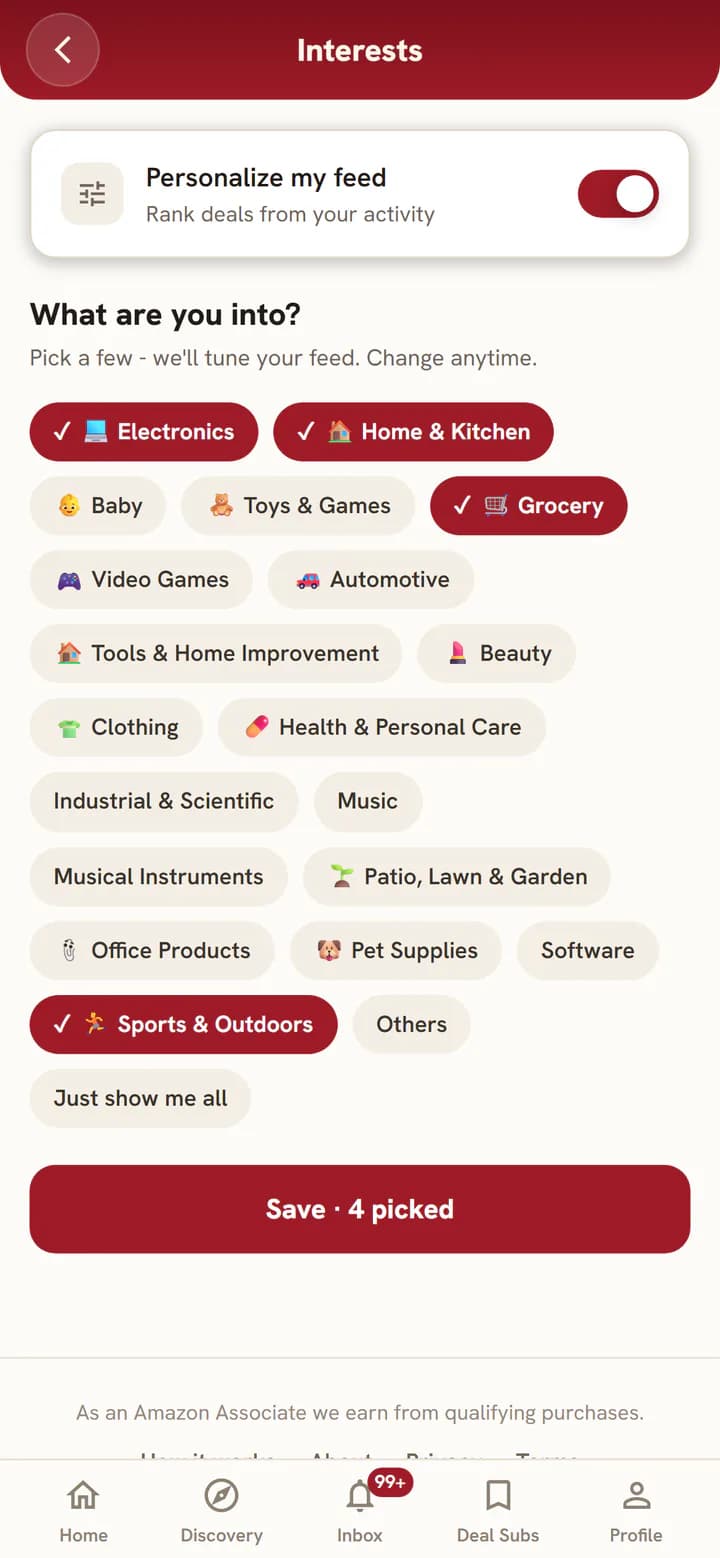
- Pick your interestsOpen Profile, then and your For you picks follow along.
- Turn on notifications or create a Deal SubOpen Deal Subs and select to hear about new deals that match what you want.
Home feed
The newest deals, all day, in one scroll.
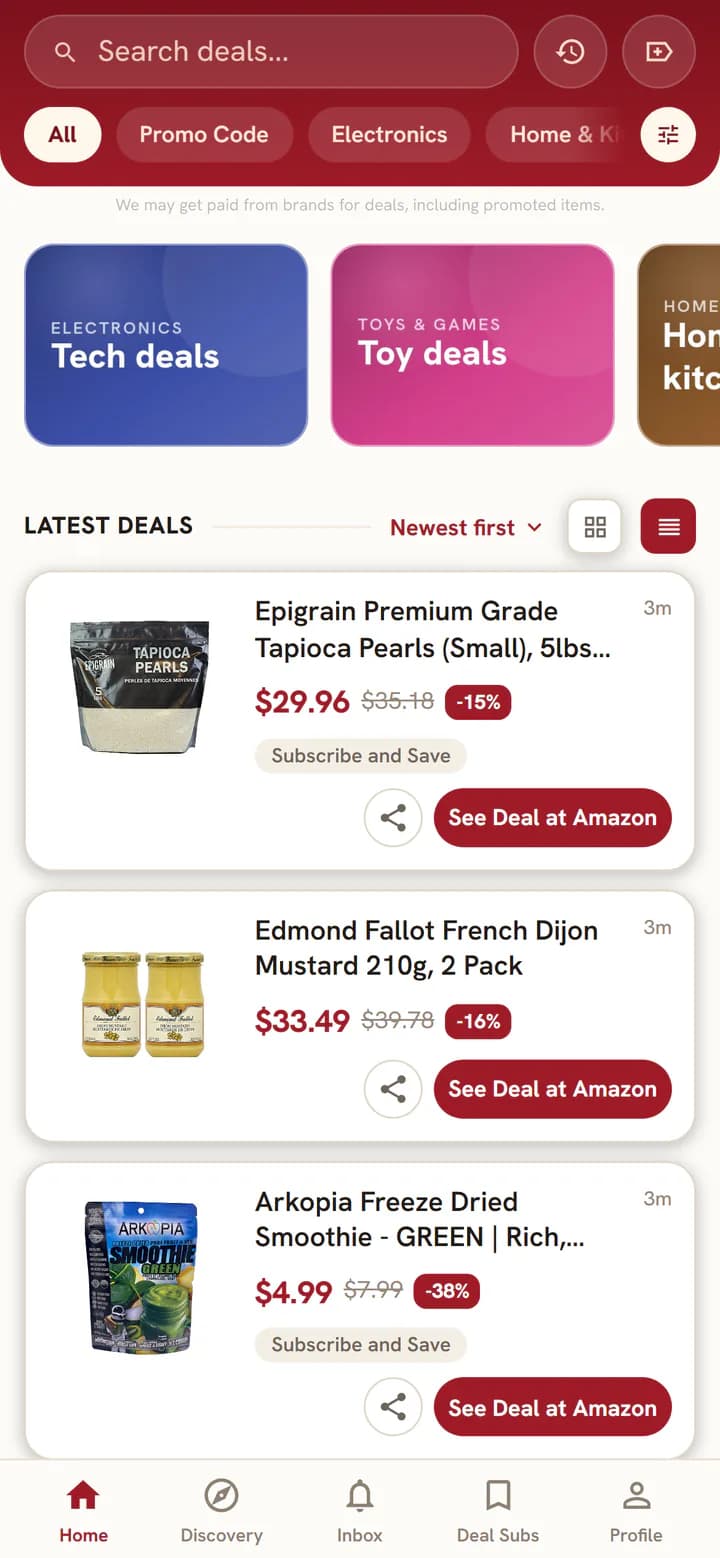
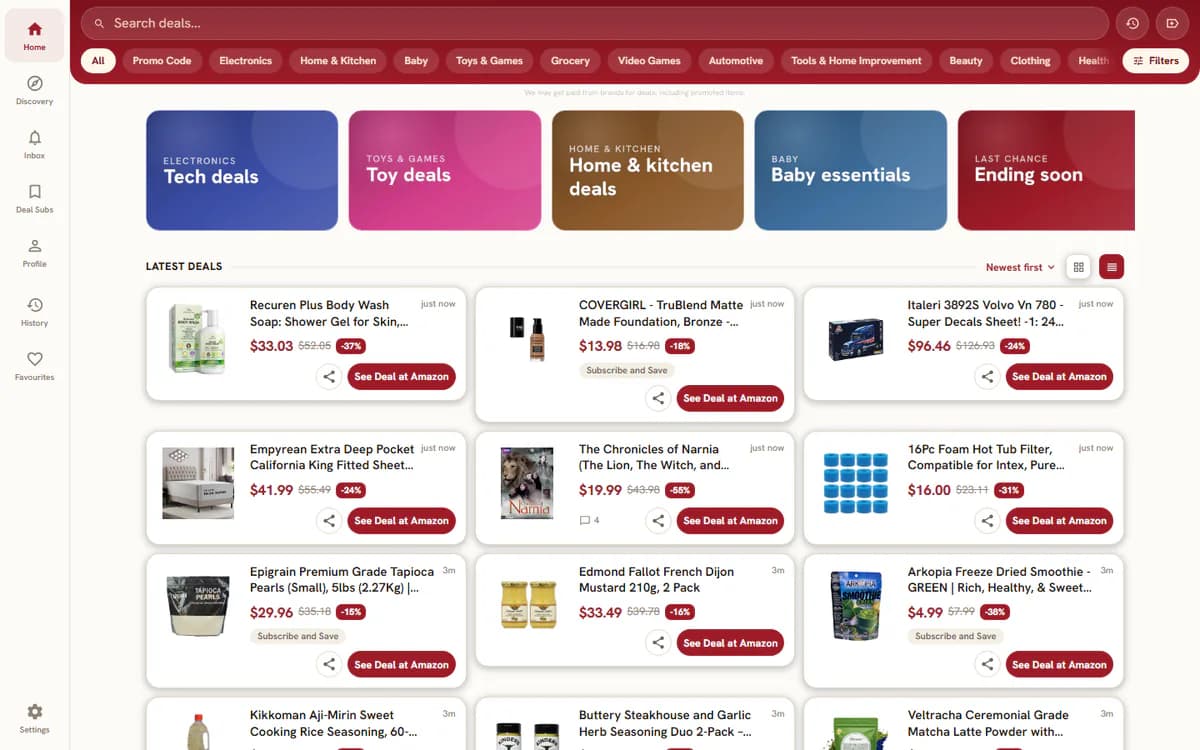
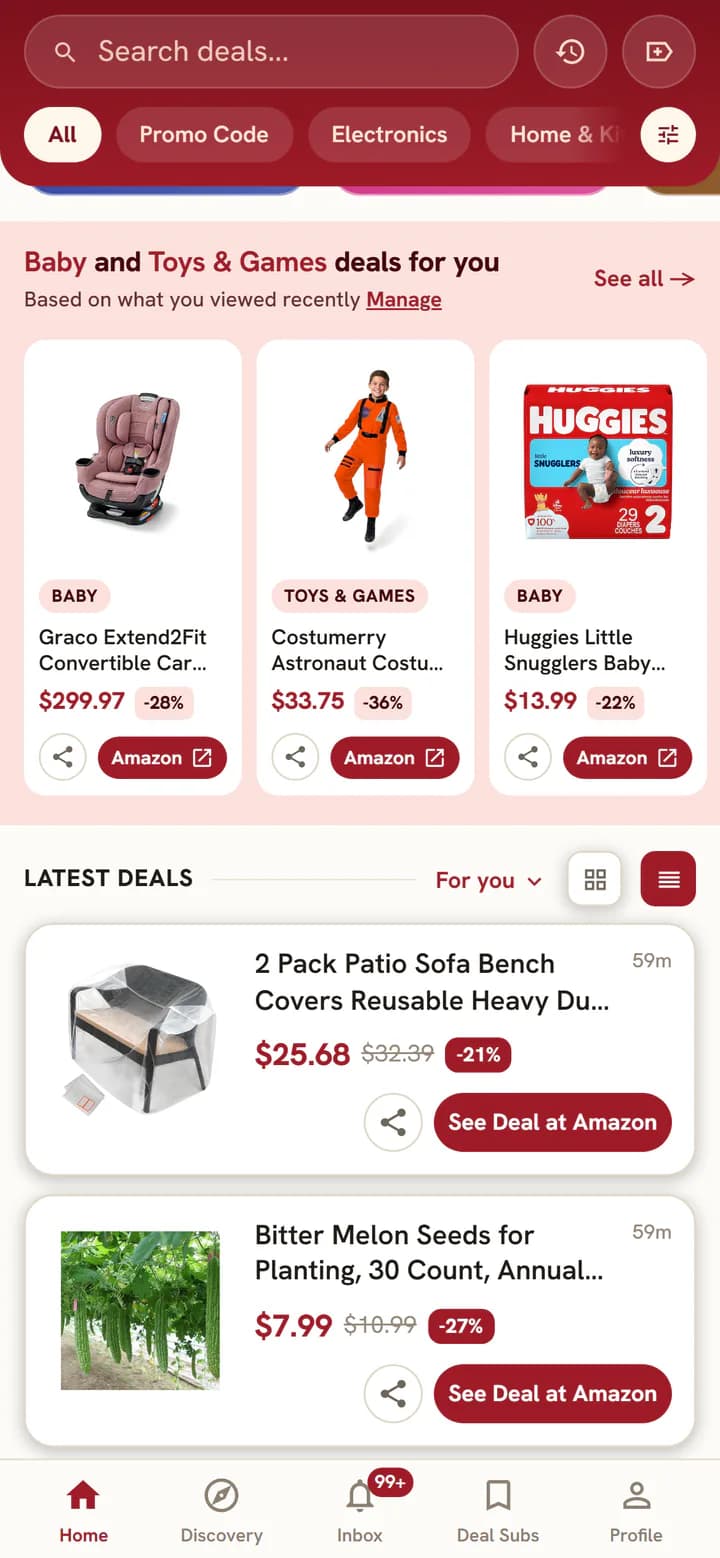
- Open Home to see the latest deals, newest first.
- Swipe the cards and banners at the top for featured deals and sale events.
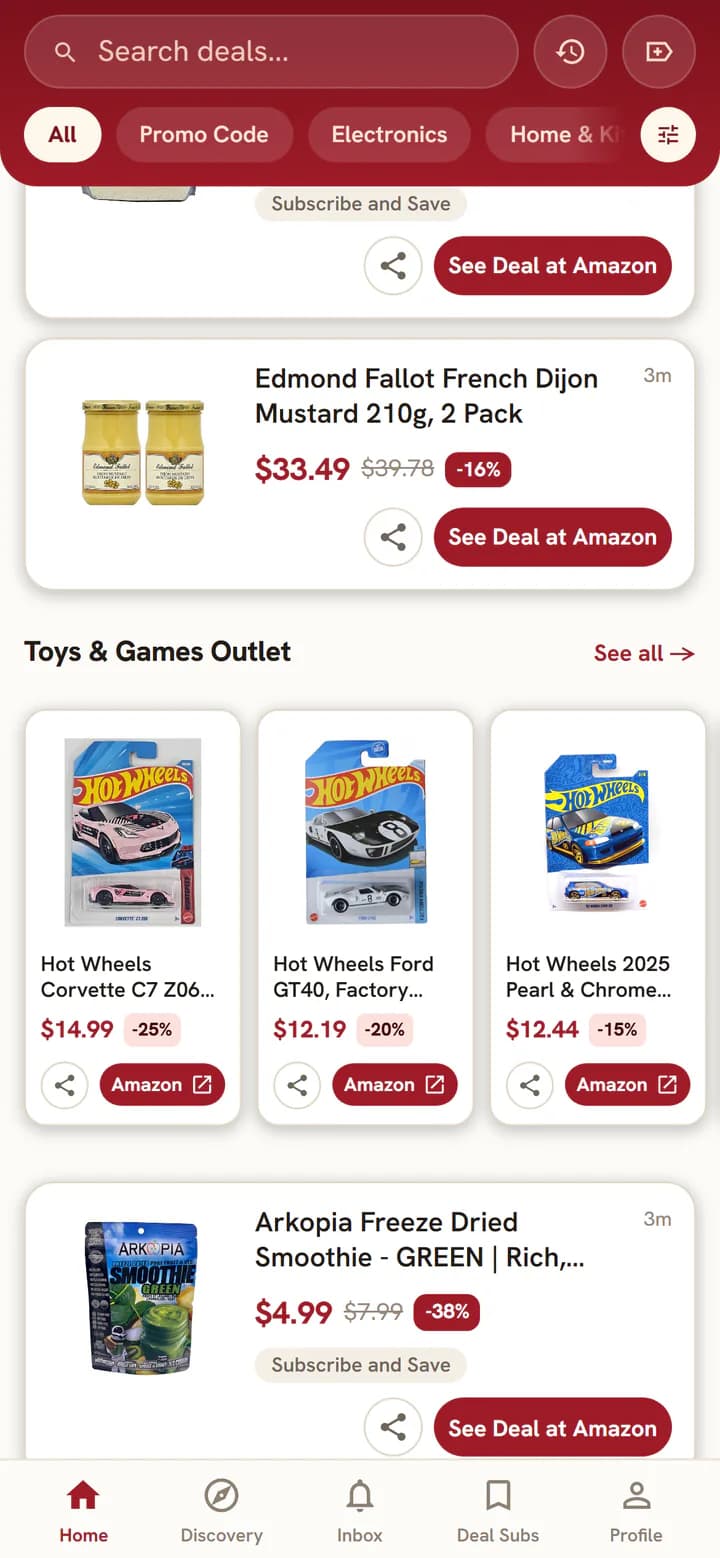
- Keep scrolling for themed collections mixed into the feed. Select See all → to open one.
- Use Grid view and List view next to LATEST DEALS to switch layouts. Your choice is remembered on this device.
Smart search
Find it even when you misspell it.
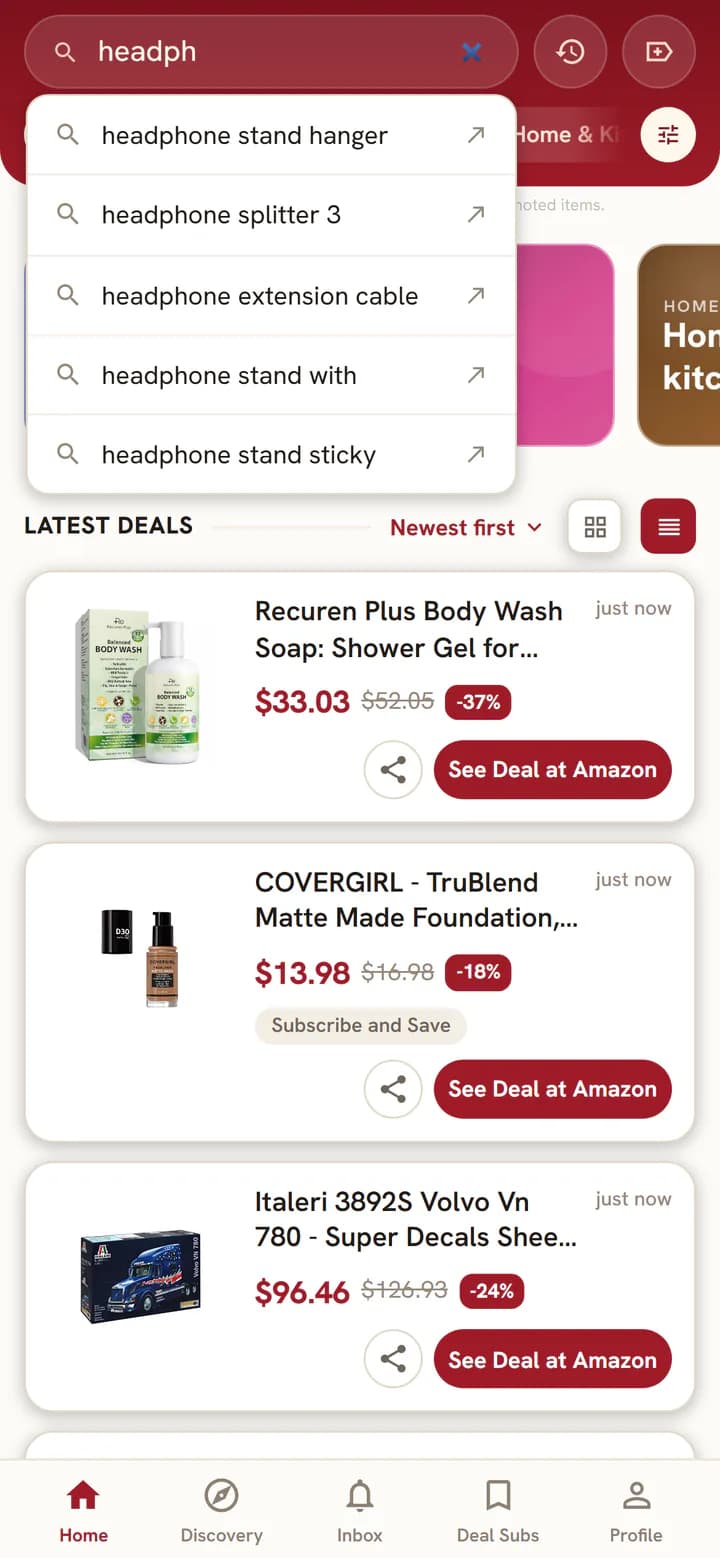
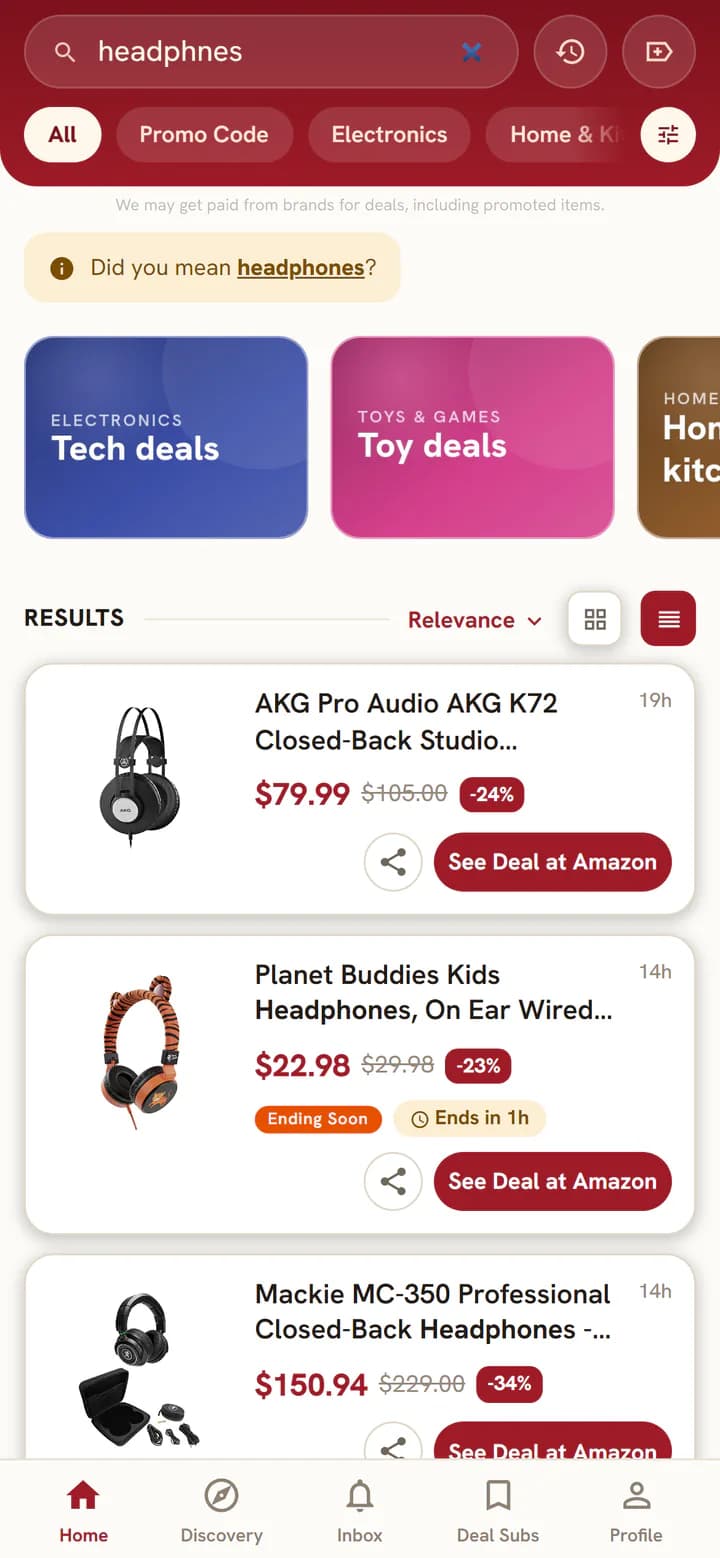
- Type in Search deals... at the top of Home. Suggestions appear as you type.
- Press Enter or choose a suggestion. Your matches come first under RESULTS, then Similar matches with close calls.
- Made a typo? Select to search the corrected word.
- Nothing found? You get a corrected search to try, words to broaden with, and the latest deals.
Filters and sort
Narrow thousands of deals down to the few you want.
- Choose a category chip like Electronics under the search box. Choose Promo Code to see only deals that come with a code.
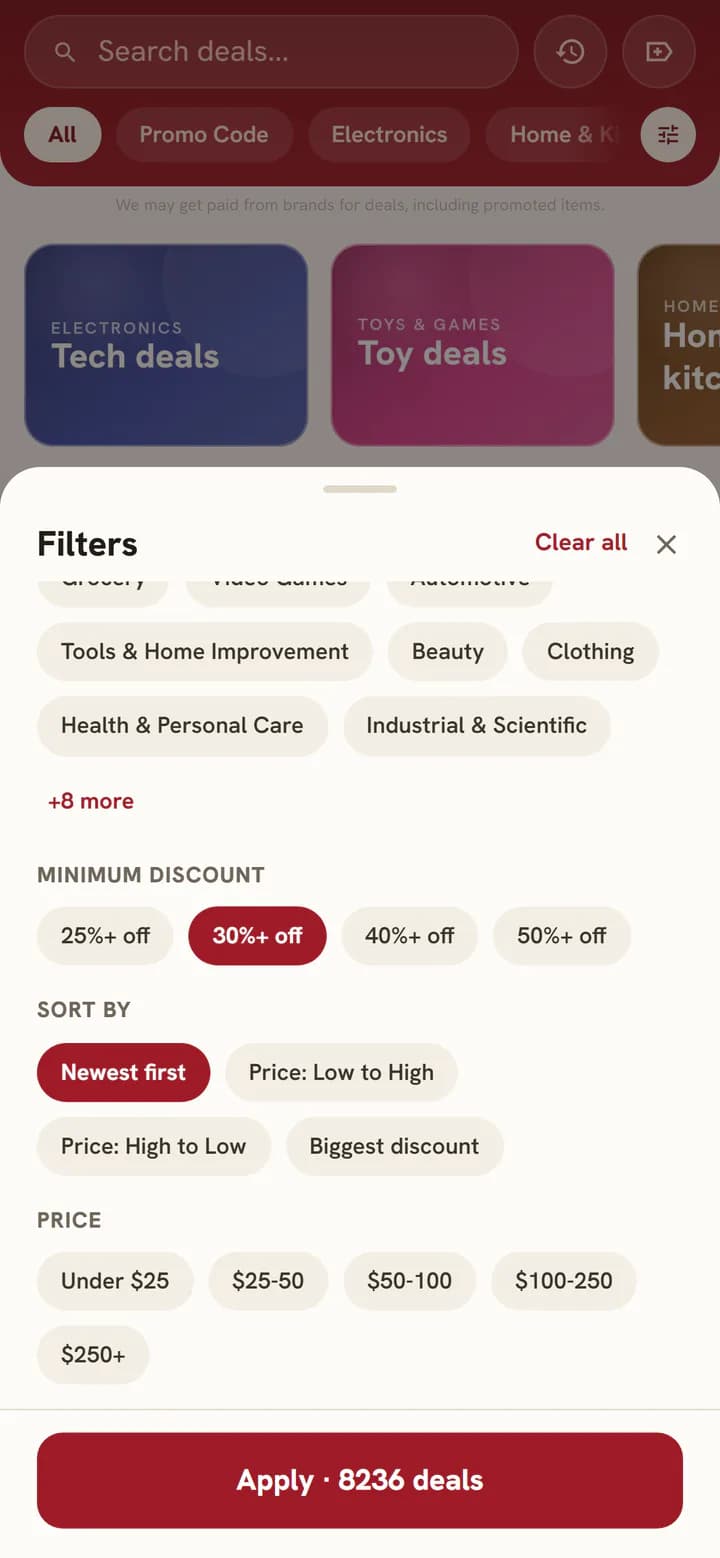
- Select Filters for more: categories, a minimum discount from 25%+ off to 50%+ off, and price ranges from Under $25 to $250+.
- The Apply button shows how many deals match before you apply, like .
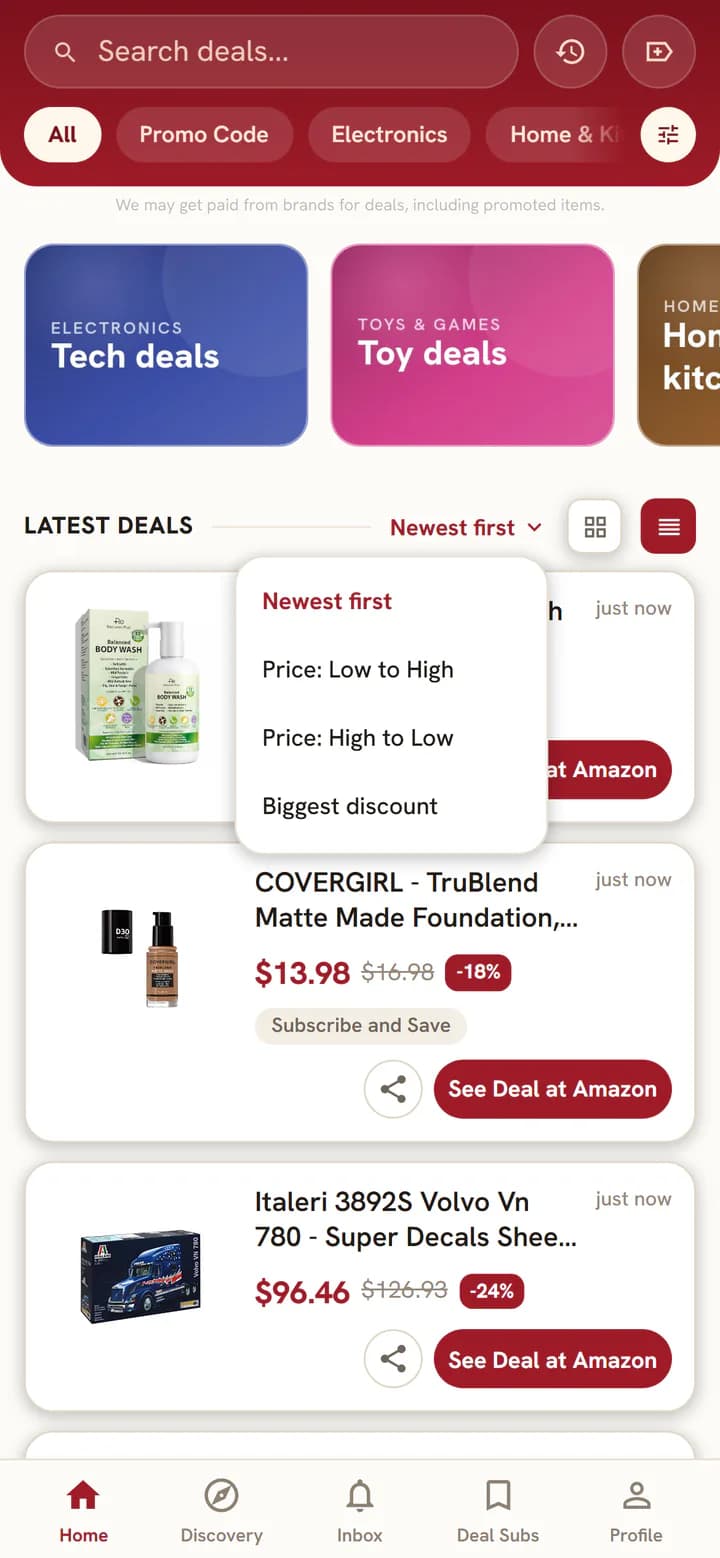
- Use the sort menu above the list: Newest first, Price: low to high, Price: high to low or Biggest discount.
Promo code deals
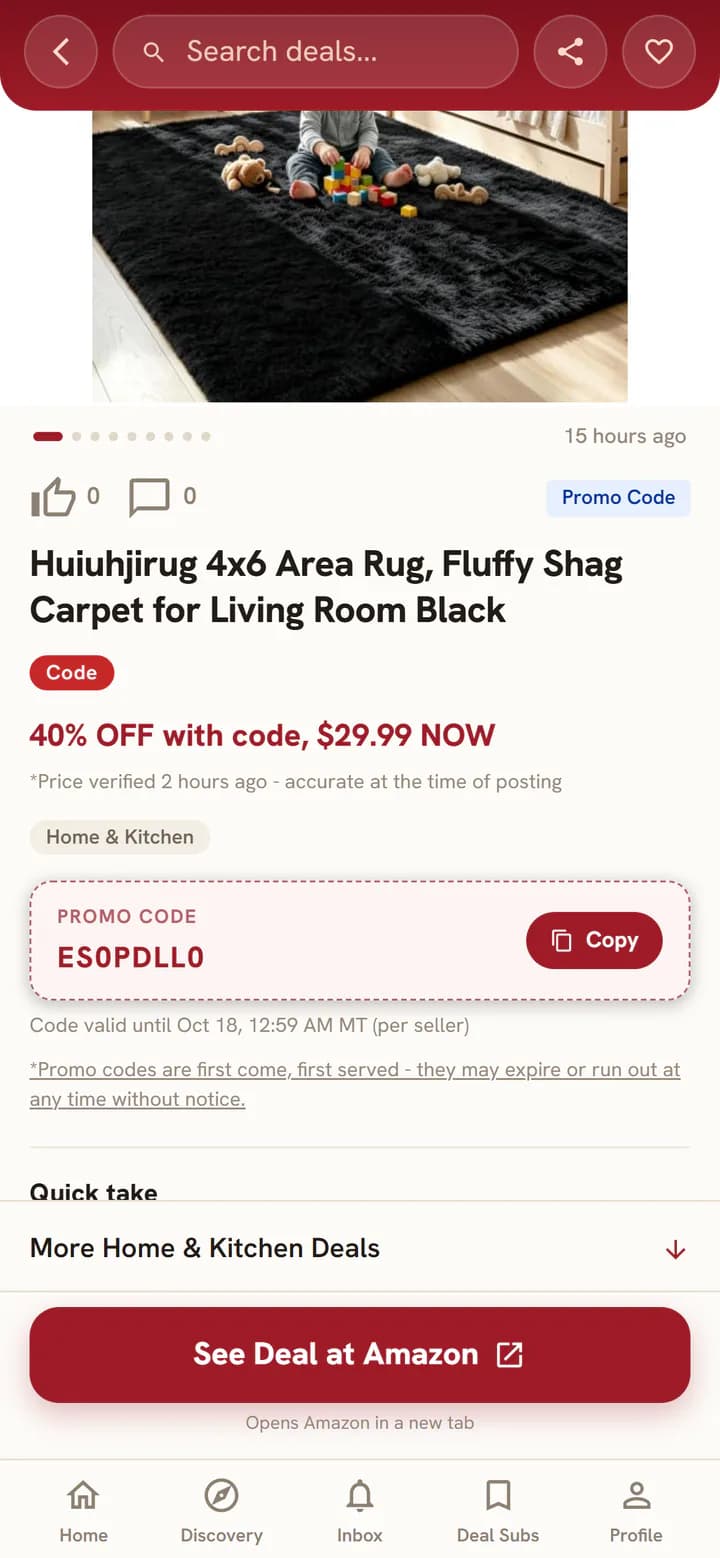
The code is right on the deal, ready to copy.
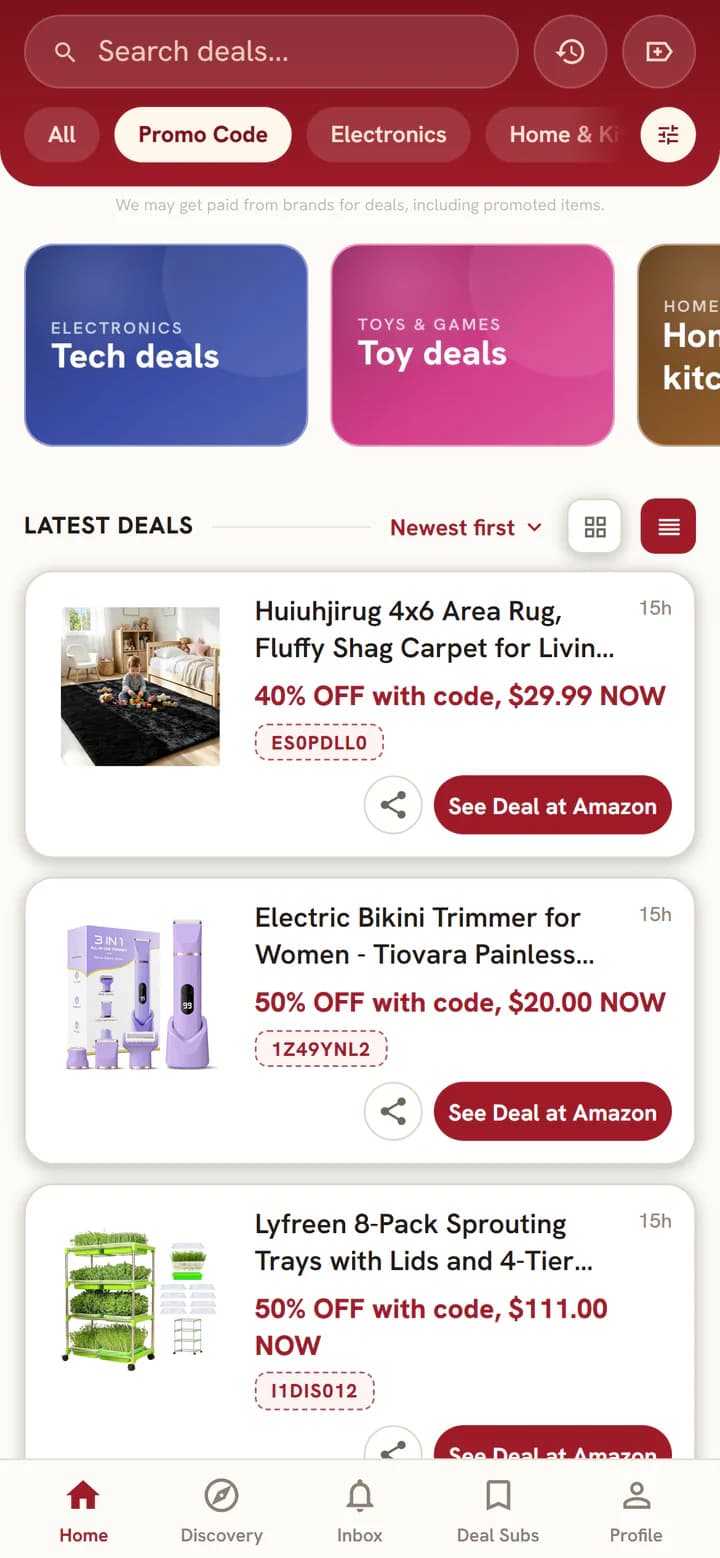
- Choose Promo Code on Home to see deals that come with a code.
- Each card shows the code, like SAVE50, and what it takes off, like 50% off with code.
- Open the deal and select in the code box. When the seller shares an end date, it shows under the code.
- Select and paste the code at checkout. Codes are first come, first served and can run out without notice.
The deal page
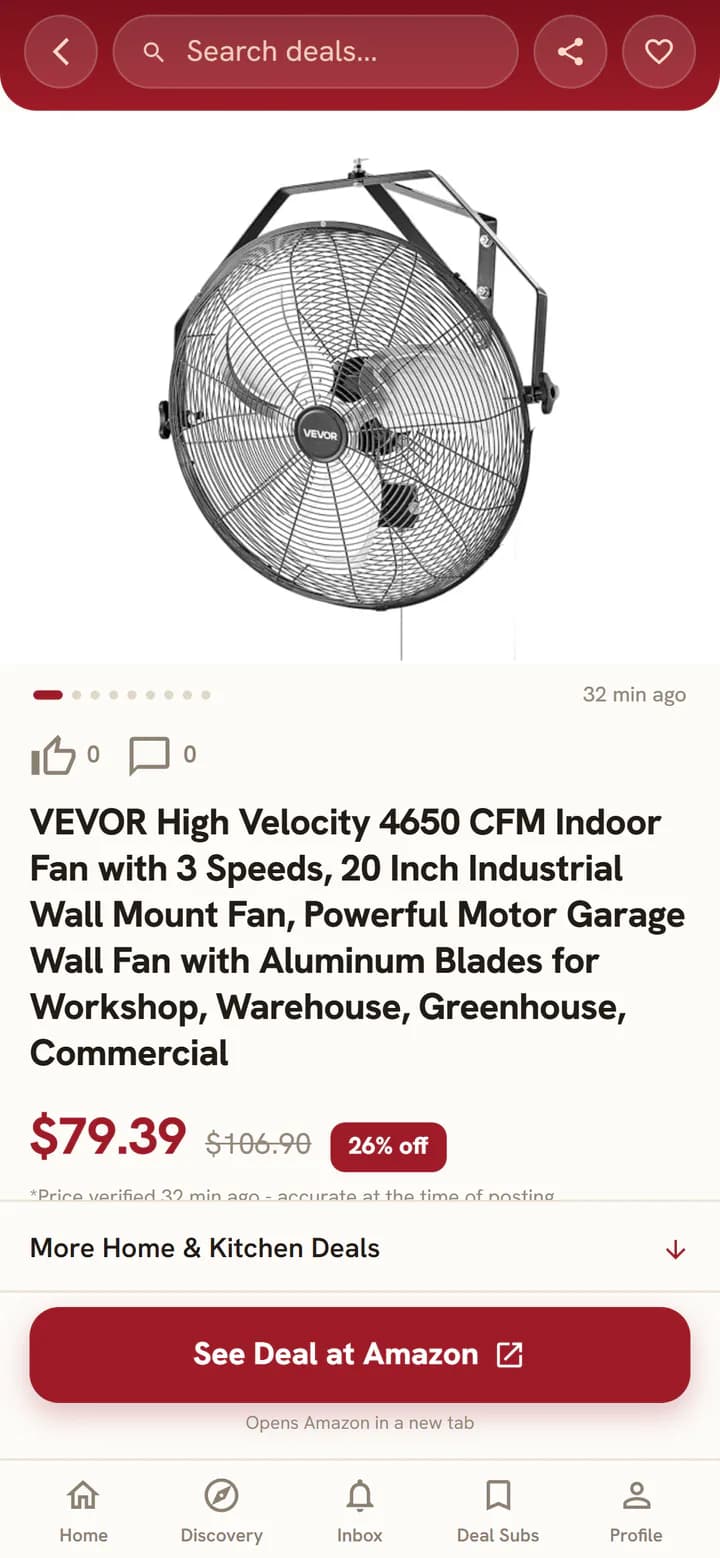
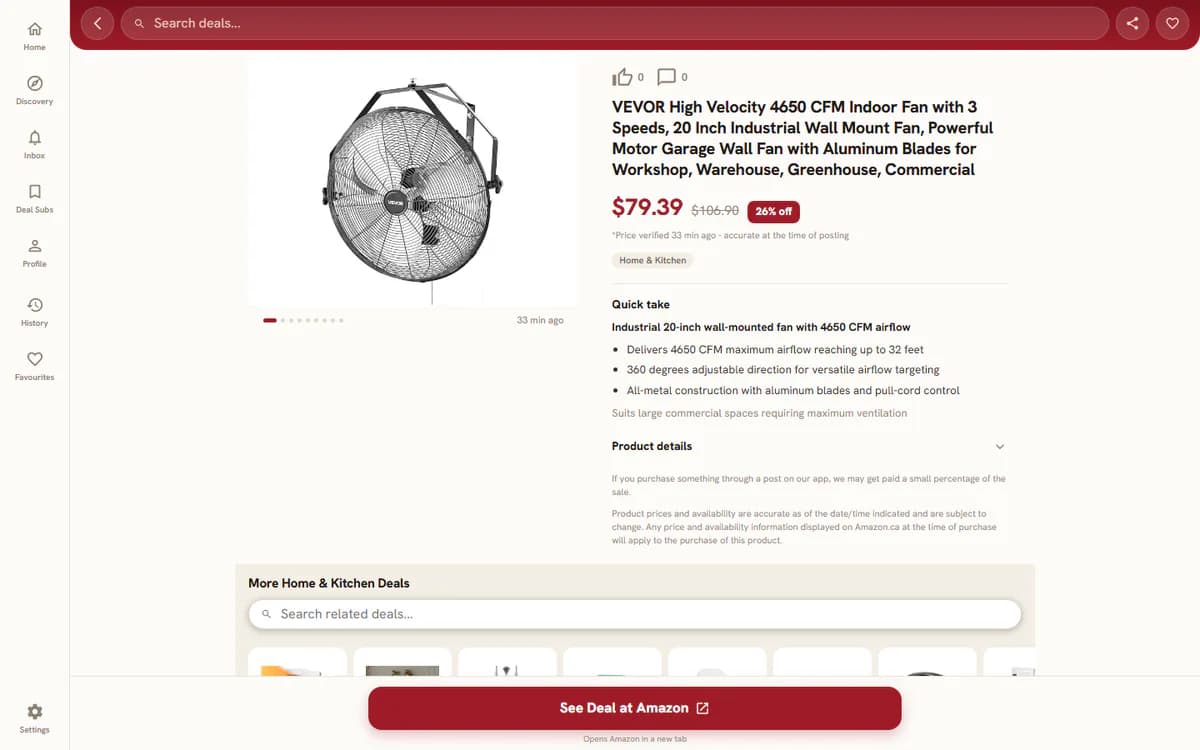
What you need to decide, on one screen.
- Swipe through the photos, or use the arrows and dots.
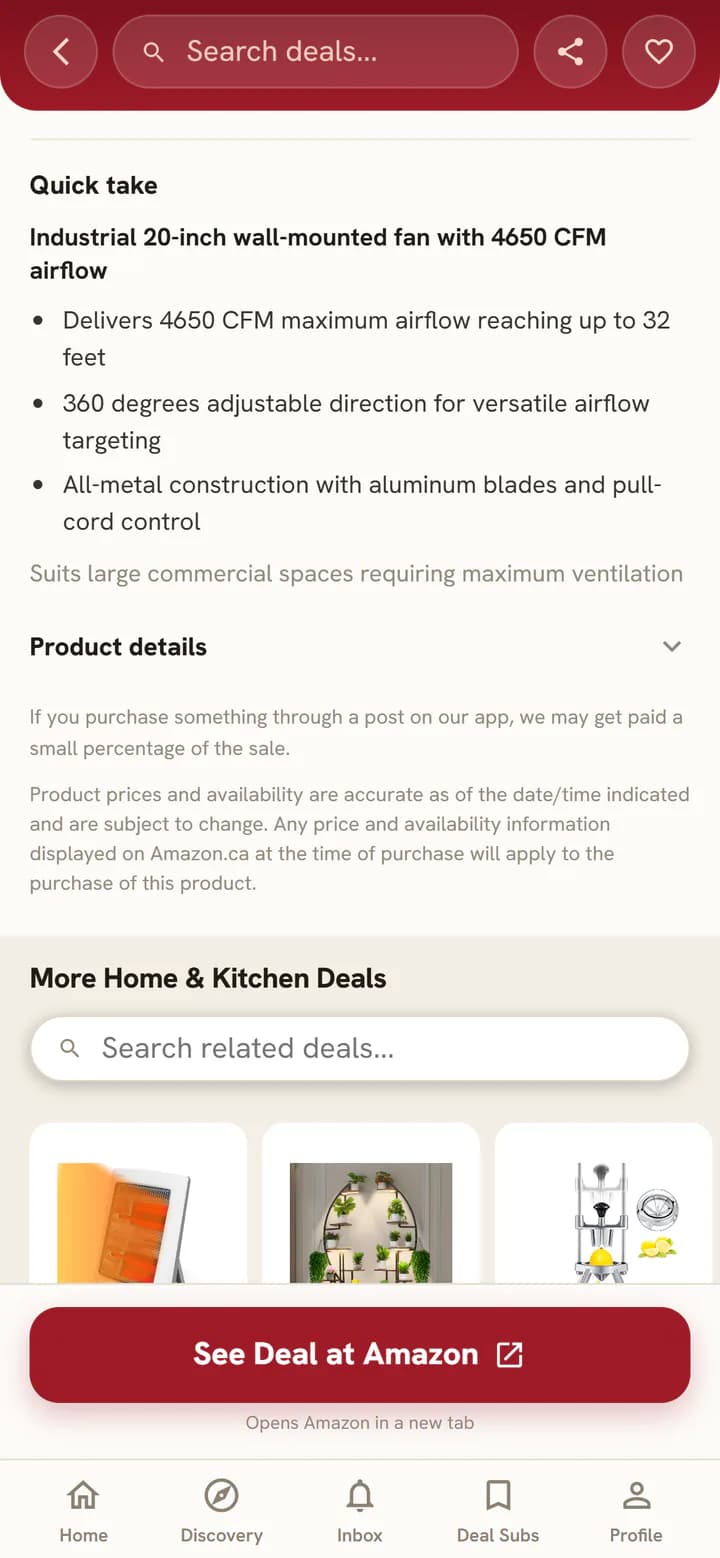
- On many deals, read the Quick take: a short summary, the key points and who it suits.
- See when the price was last verified, right under the price.
- Select Share this deal at the top to send the deal to a friend. The link shows a preview with the photo in chats and posts.
- Scroll down for more deals in the same category, with their own search box.
- Select when you are ready. It opens in a new tab.
For you and your interests
A feed shaped by what you like on Maple Deals.
- Open Profile, then , choose the categories you care about, then select .
- The For you rail on Home fills with picks from your interests and the deals you viewed recently. Select See all → for more.
- Prefer a plain feed? Switch off Personalize my feed at the top of the Interests page. If you're not signed in, the choice is saved on this device.
Deal Subs
Get notified when new deals matching what you want are posted.
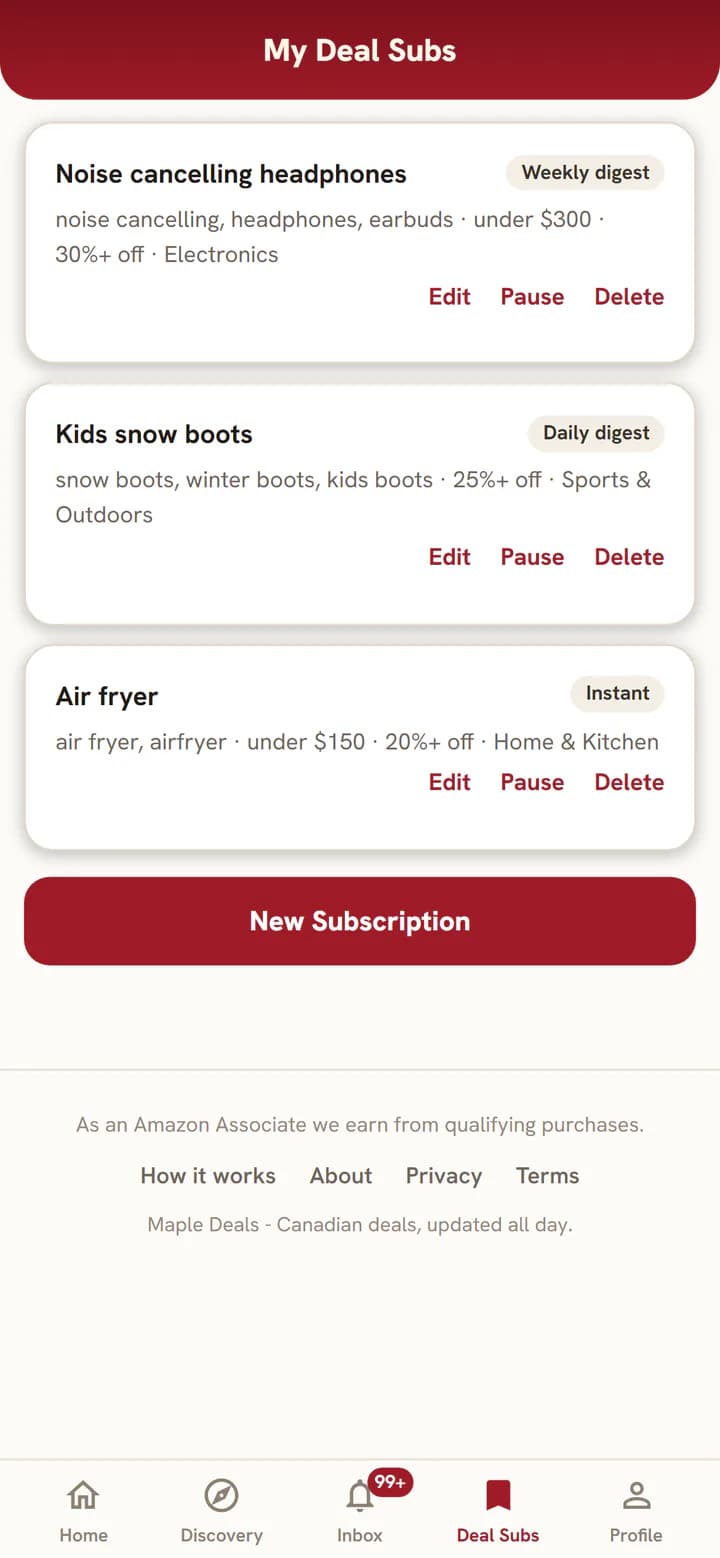
- Sign in and open Deal Subs.
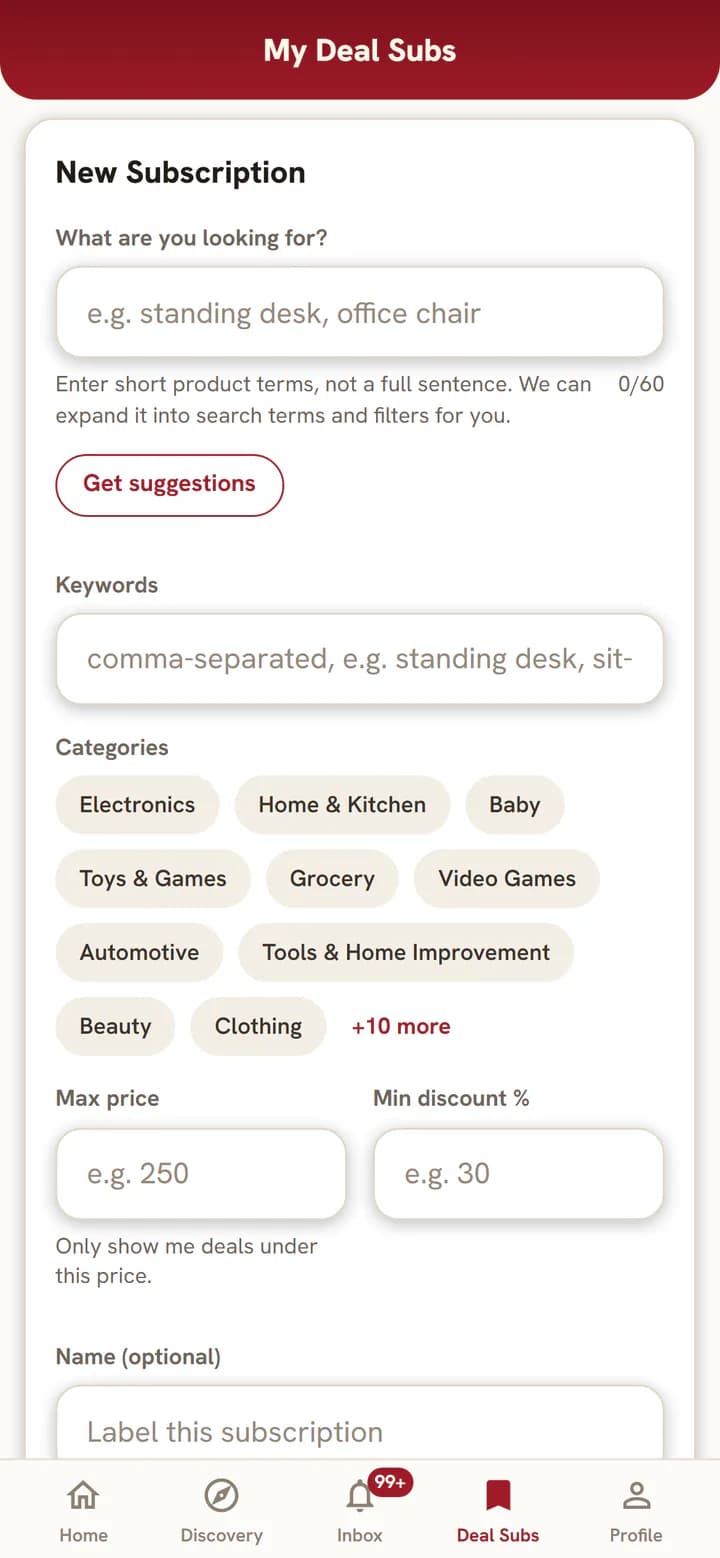
- Select and say what you are looking for, like air fryer or kids snow boots. can fill in the keywords for you.
- If you like, add categories, a max price or a minimum discount, and choose how often to hear about matches: Instant, Daily or Weekly.
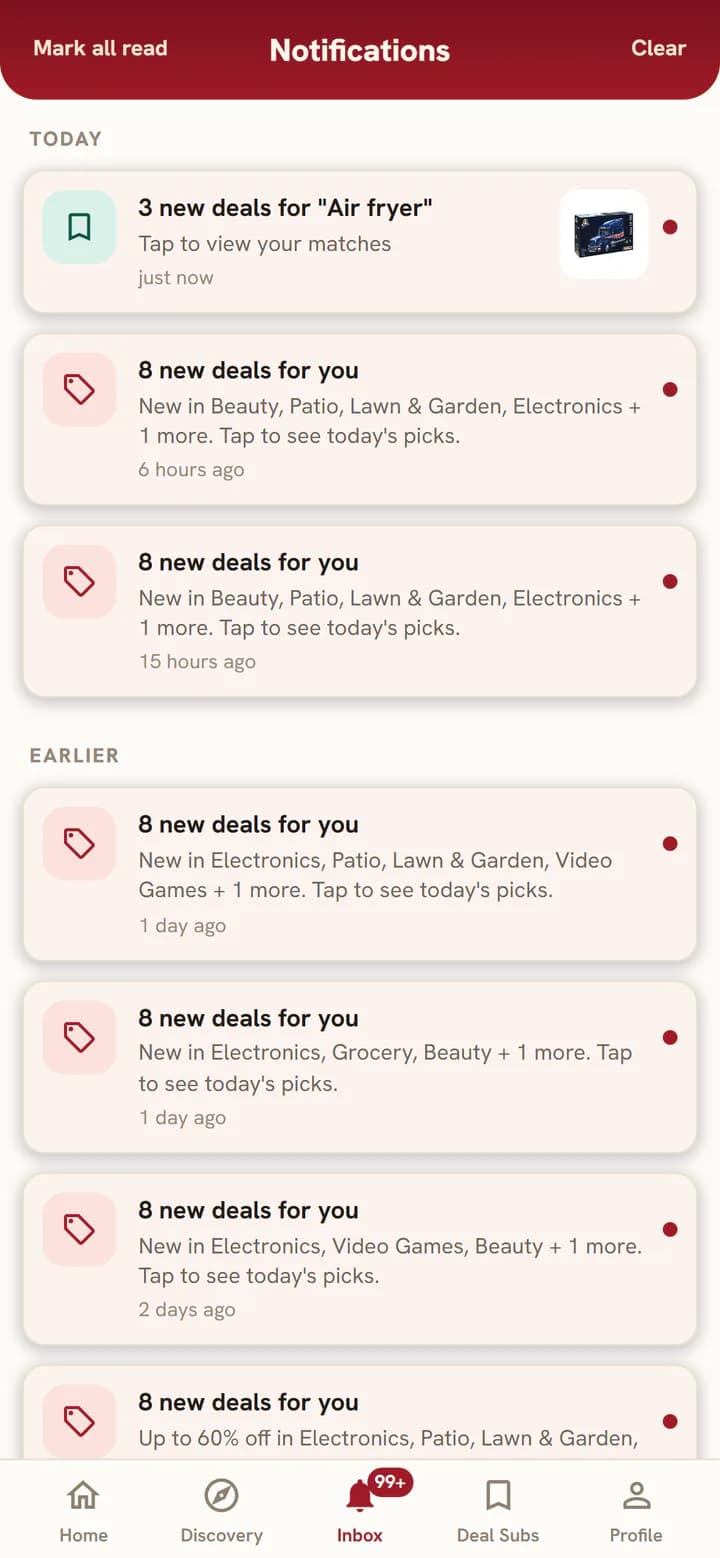
- Select . Matches arrive as notifications and in your Inbox, and each sub keeps its own list of matched deals.
- Each sub shows how often you hear from it: Instant, Daily digest or Weekly digest. Use Edit, Pause or Delete anytime.
Inbox and notifications
Never lose a deal you were notified about.
- Every notification is saved in Inbox, under Today and Earlier. Select one to jump to its deal.
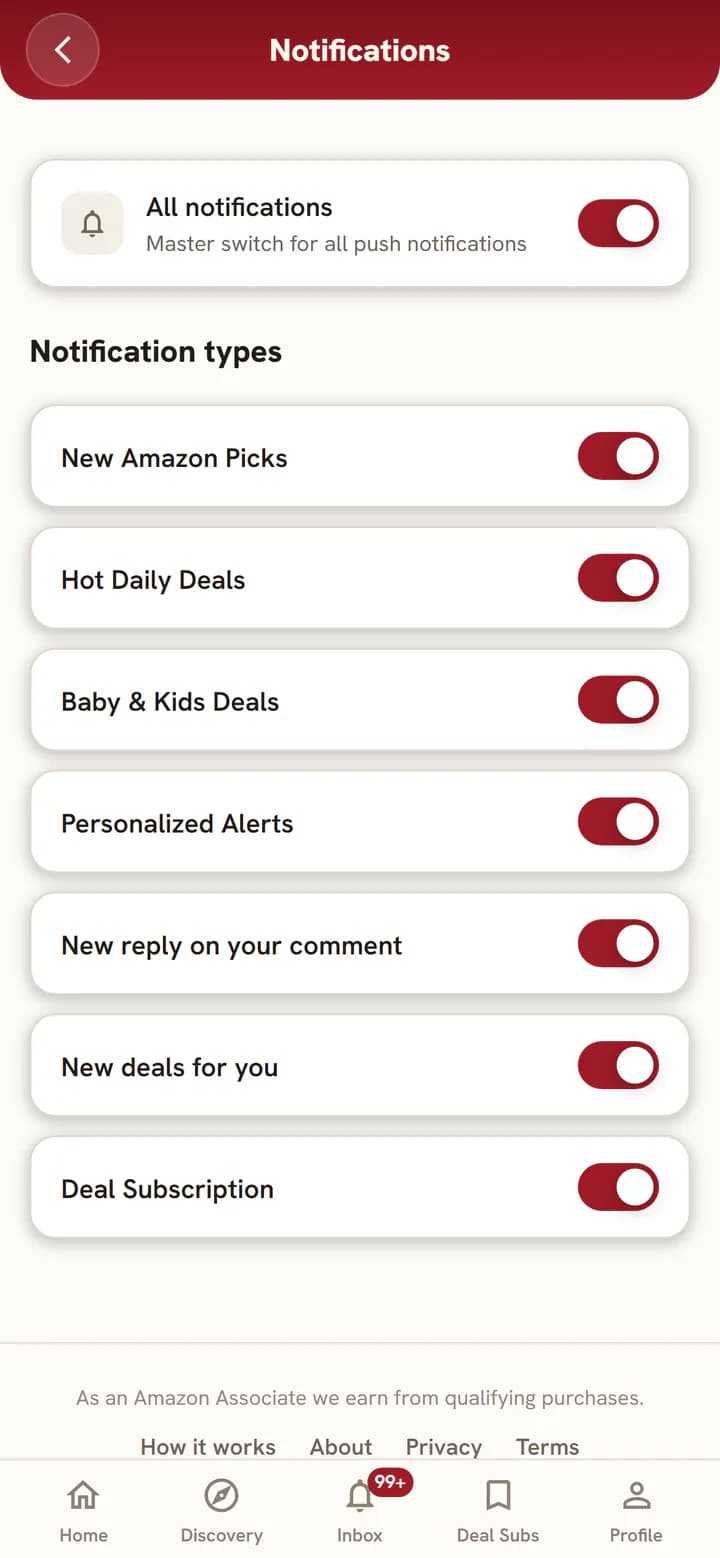
- New deals for you is a short digest of fresh deals picked from your interests. Switch it on or off in Profile, then .
Turn on push notifications
Android (Chrome)
- Sign in and open Profile, then , then .
- Tap Allow when your browser asks.
iPhone
- Add Maple Deals to your home screen first. iPhone only allows notifications for home screen apps, on iOS 16.4 or later. How to add it
- Open Maple Deals from the new icon and sign in.
- Tap when asked, or open Profile, then , then .
Sale events
Big shopping events get their own page.
- During big events like Prime Big Deal Days, look for the event card on Home.
- The event page gathers its deals in one place and can count down to the end.
- Search inside the event, or select Filters to narrow it by price and discount.
Discovery and categories
Browse by theme when you are not sure what you want.
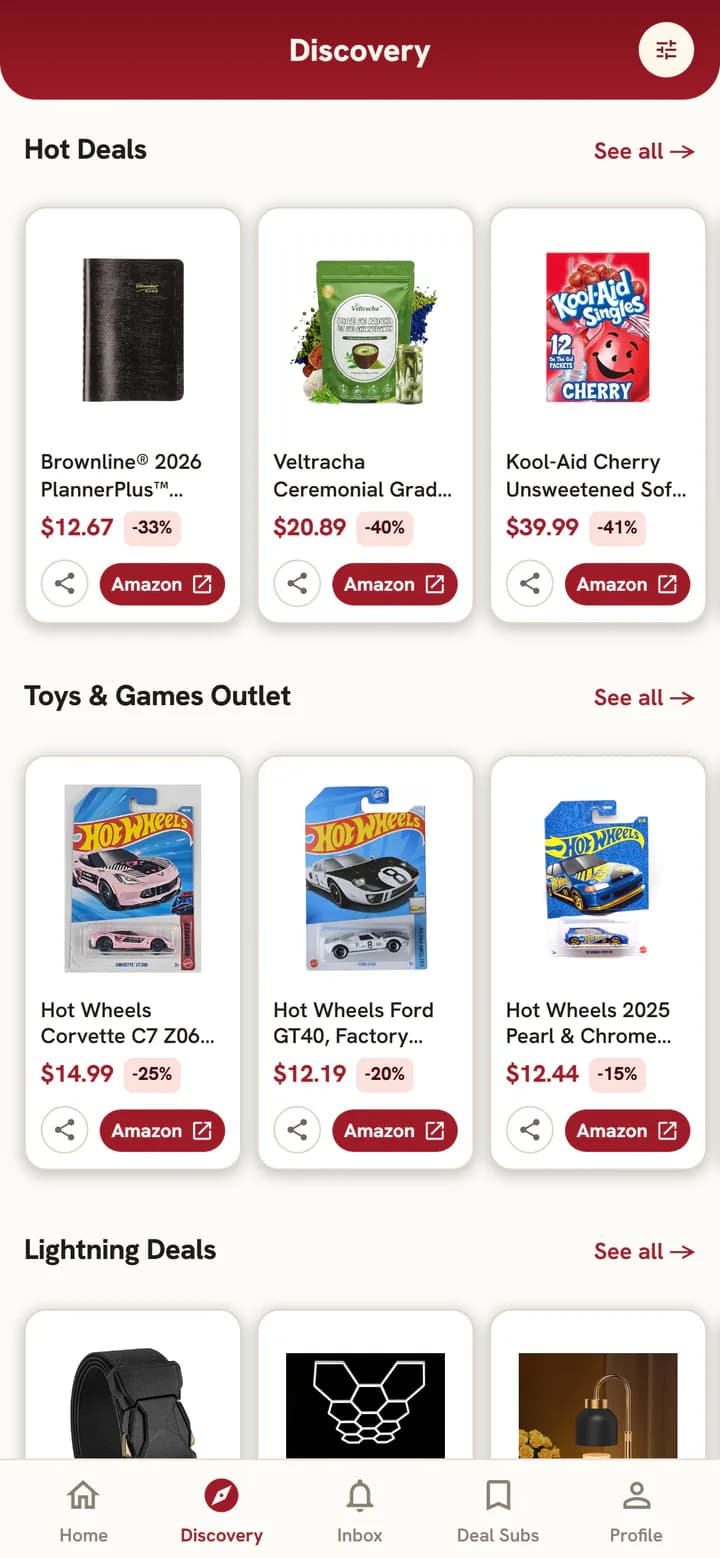
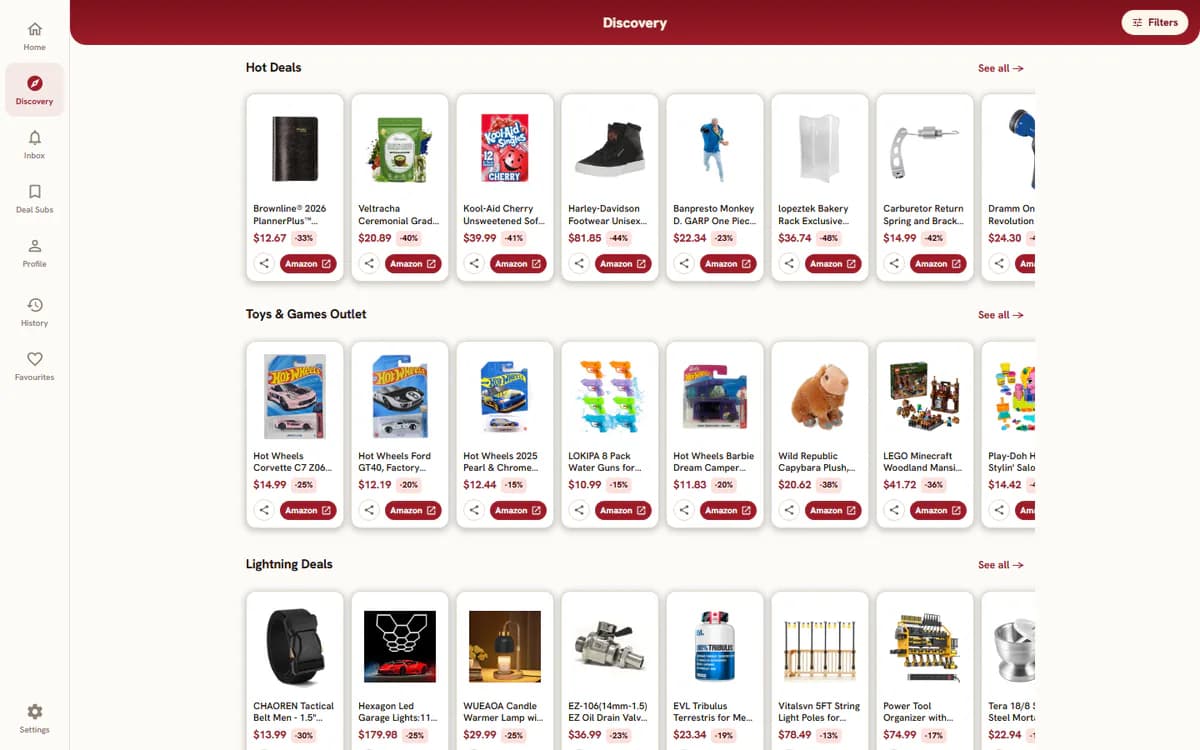
- Open Discovery for themed strips of deals and collections.
- Select See all → on any strip to open the full list.
- Select Filters to choose categories, a minimum discount or a sort order.
- On Home, category chips like Electronics take you straight into one category.
Community
Real people talking about real deals.
- Select Like on a deal page to like it.
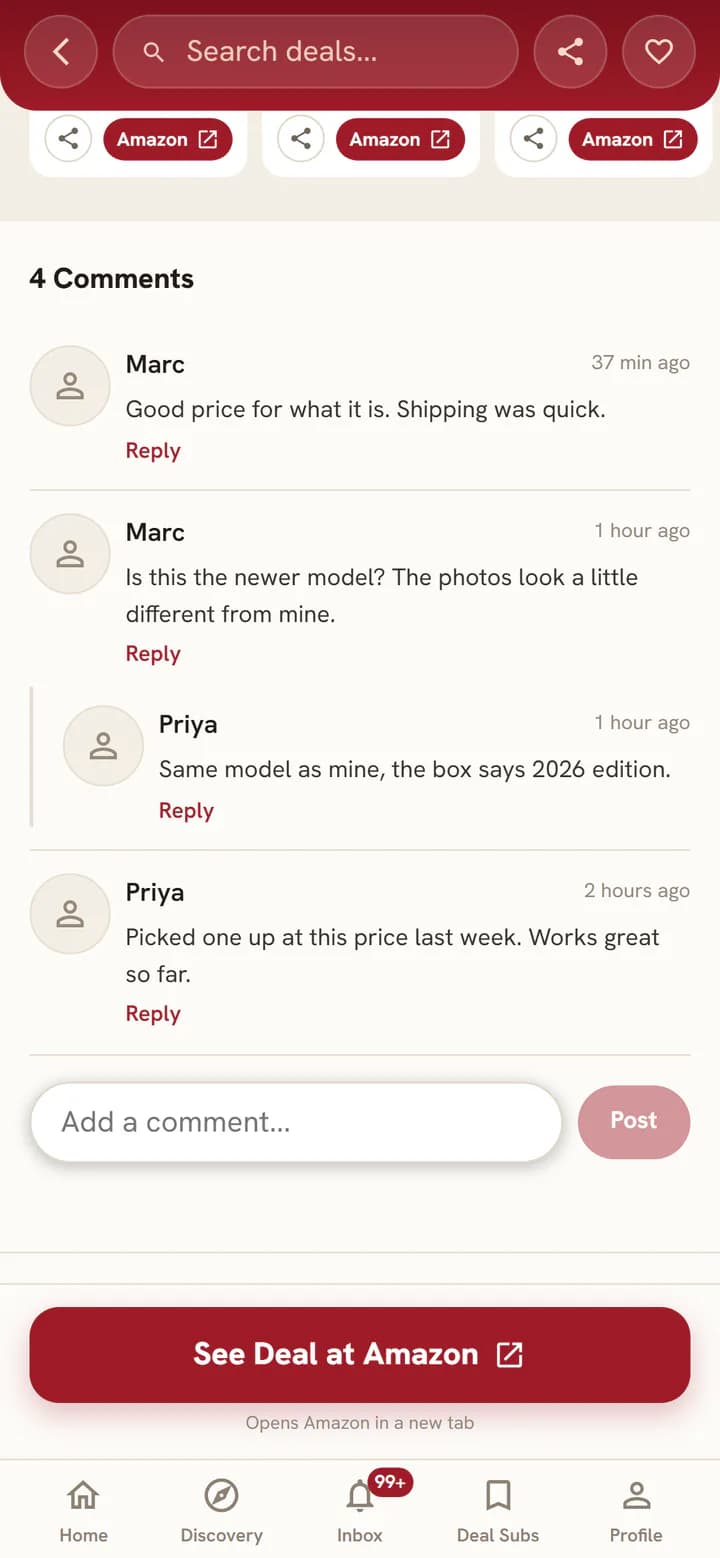
- Scroll to 3 comments to read what others think, type your own and select . Select Reply to answer someone.
- Deal ended or sold out? Select Report a problem under the description to let us know.
- Taking part needs a free account.
Favourites and history
Save deals for later and find the ones you saw.
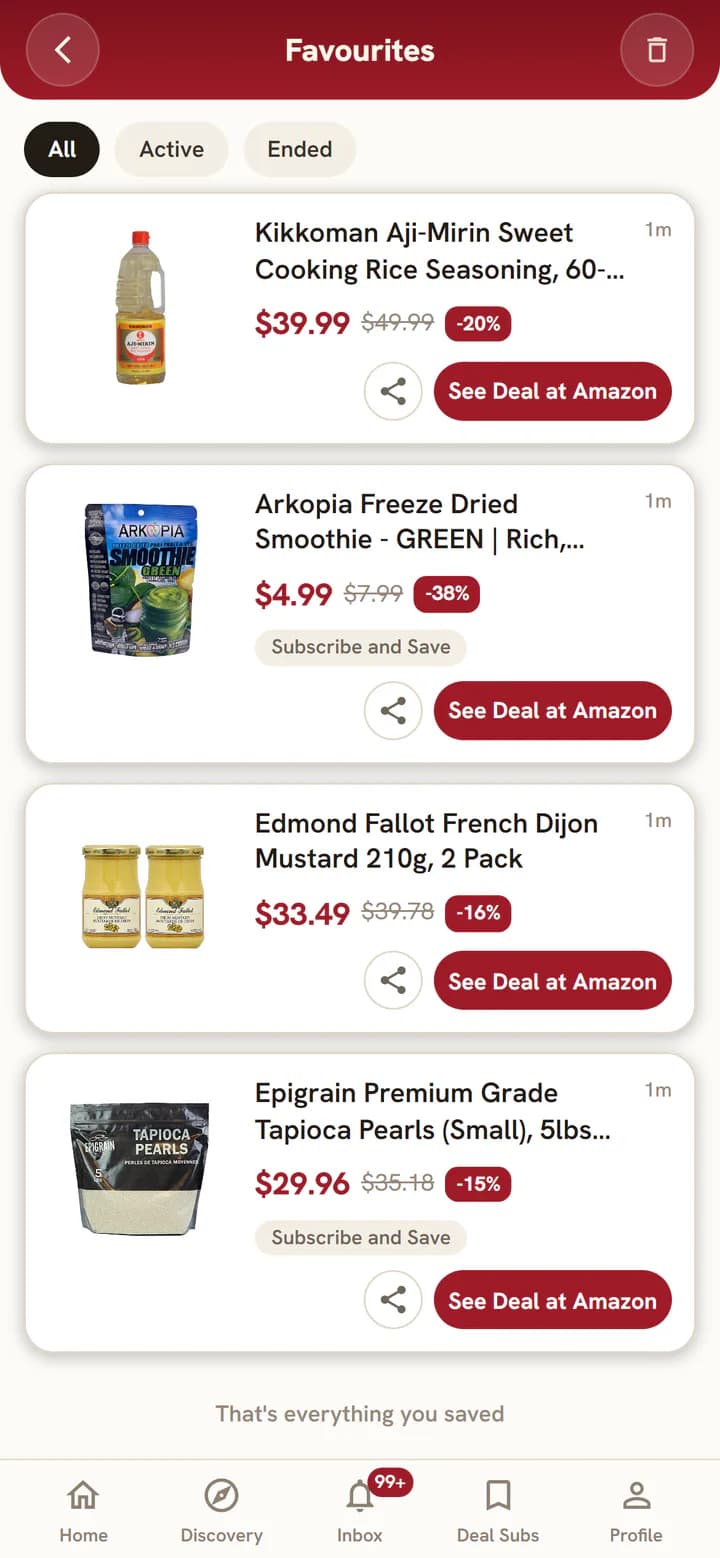
- On a deal page, select Add to favourites at the top to save it to Favourites. Saving needs a free account.
- Find them in Profile, then . Switch between All, Active and Ended.
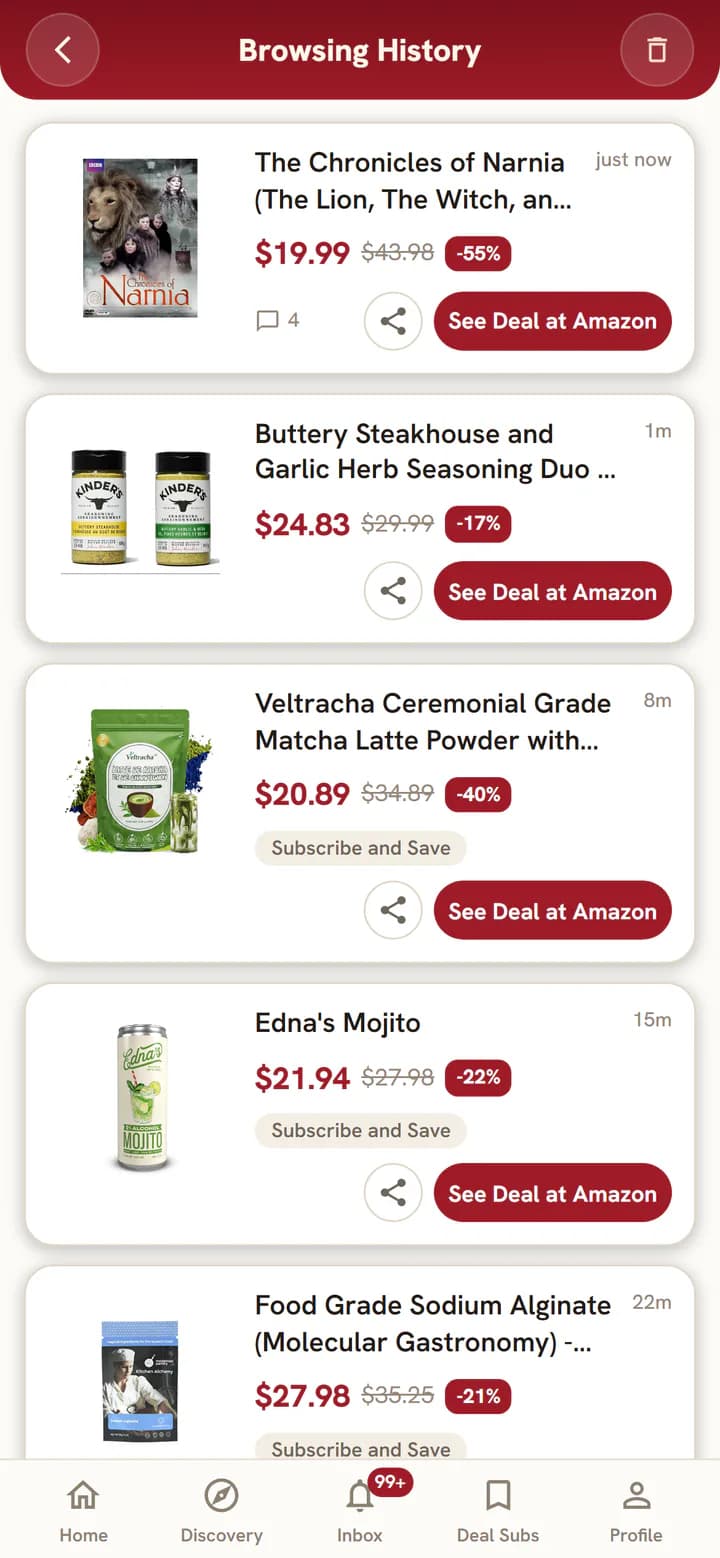
- Lost a deal you saw earlier? Select Browsing history at the top of Home. It works signed out too, on this device.
Submit a deal
Found a great deal? Share it with everyone.
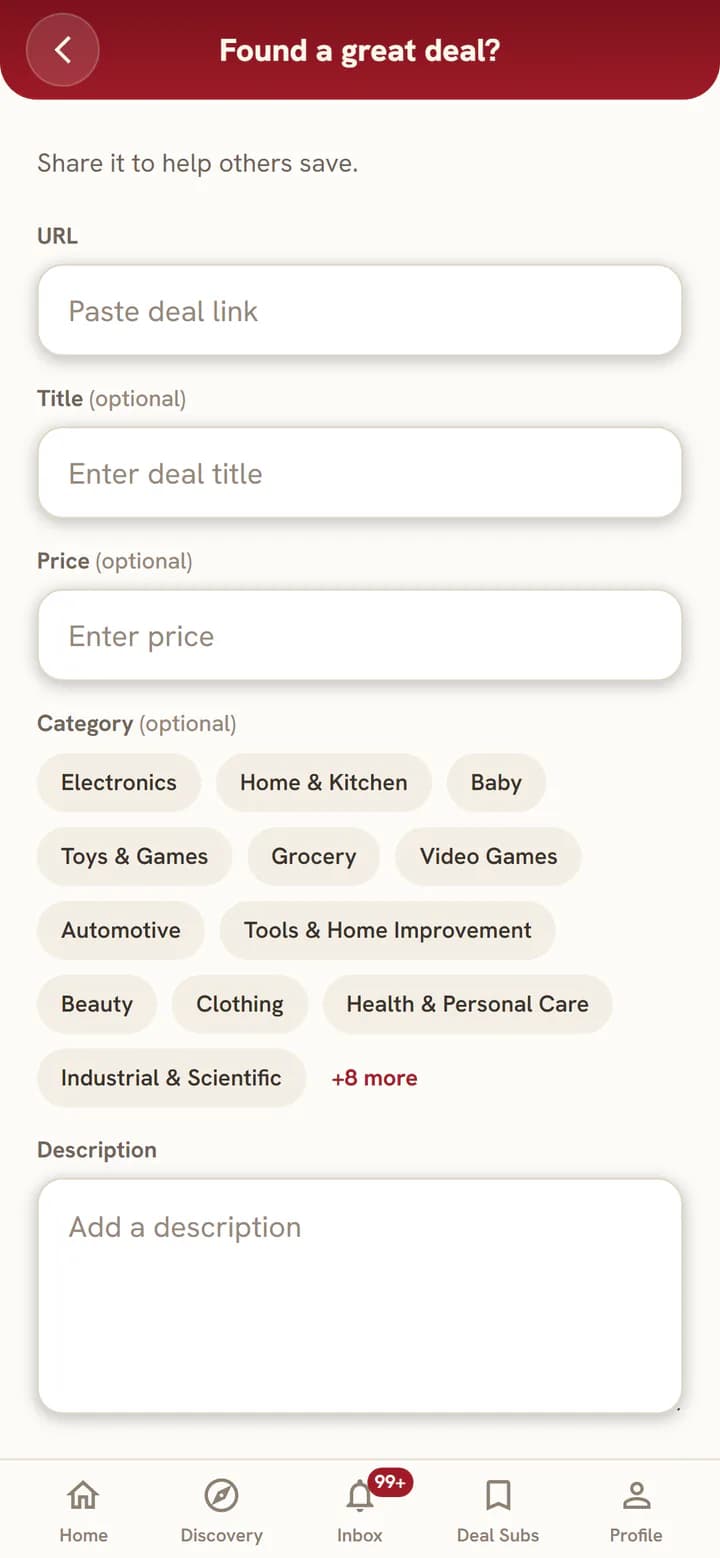
- Select Submit a deal at the top of Home.
- Paste the deal link and add a short description. Title, price and category are optional.
- Select and we will take a look. Submitting needs a free account.
Install as an app
Open it from your home screen, with no app store needed.
Opened from Facebook or Instagram?
Those apps open links in their own built-in browser. Use their menu to open the page in Chrome or Safari for the full experience, including signing in and installing.
Which phone do you have?
- The first time you visit, Maple Deals may offer a one-tap button.
- You can always open Profile, then , then to see these steps again.
Add it yourself
iPhone (Safari)
- Tap the button at the bottom right of Safari, then Share.
- Tap View More, then Add to Home Screen.
- Tap Add at the top right. Maple Deals appears on your home screen.
Older iPhone? Tap Share in the toolbar, then scroll down to Add to Home Screen.
Using Chrome on iPhone? Open mapledeals.app in Safari for these steps.
Android (Chrome)
- Tap menu at the top right of Chrome, then Install and create shortcut.
- Tap Install, then Install again to confirm.
- Wait a few seconds. Maple Deals appears on your home screen.
Older Chrome? Choose Add to Home screen or Install app in the menu instead.
Android - from inside Maple Deals
- In Chrome, open Profile, then , then .
- Tap Install, then wait a few seconds while it installs.
- Go to your home screen and tap the new Maple Deals icon.
Make it yours
Set it up your way, with as much help as you want.
- Short tips point out what each screen does. In Profile, then turn them off with Show tips, or select to see them again.
- Want the welcome screen again? Open it on Home
Account and help
Free to join. Help is always close by.
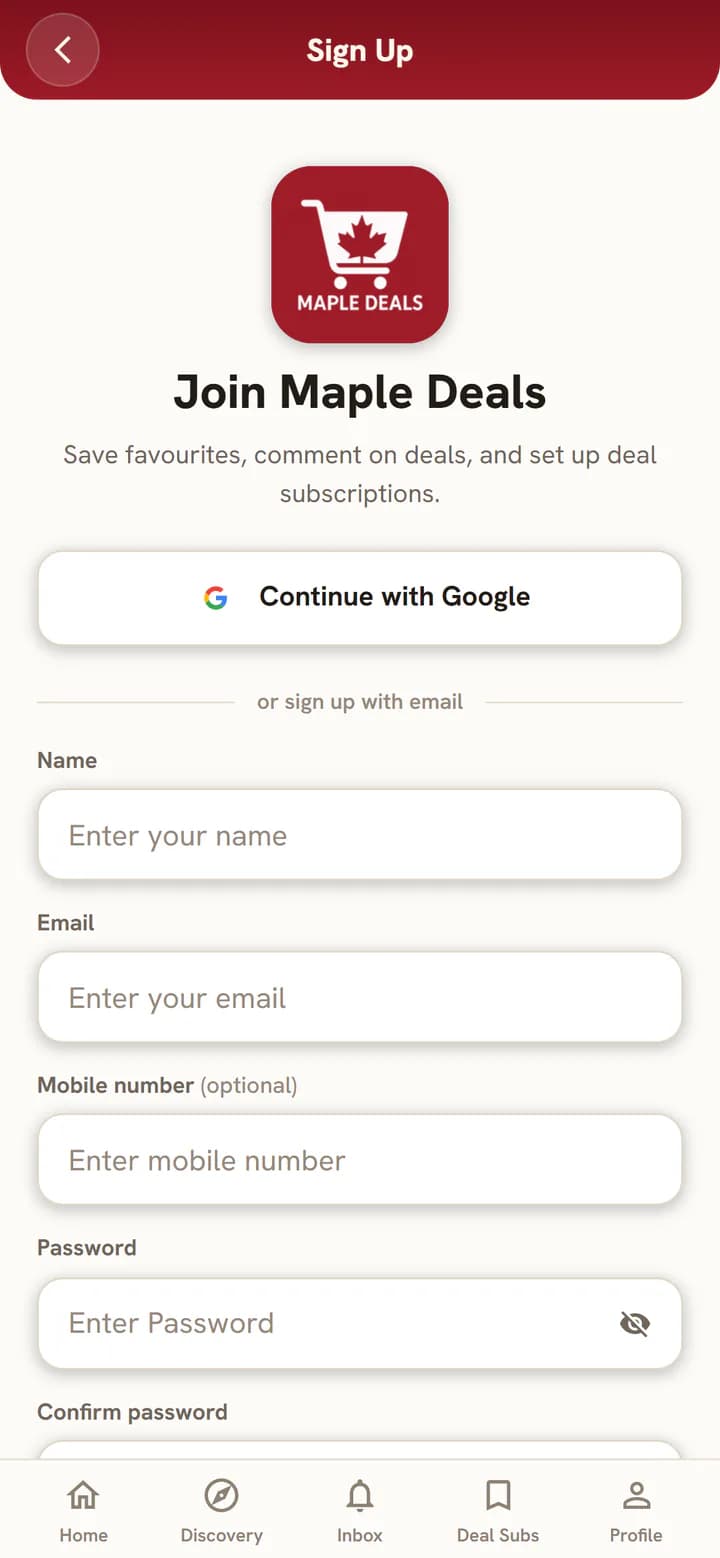
- Sign up free with Continue with Google, or with your email and a password. We email you a code to confirm it is you.
- Already a member? Sign in with Google or your email.
- See how you sign in, or set a password, in Profile, then , then .
- Questions? Profile, then has , and once you sign in, and .

What you get with Maple Deals
- Promo codes, ready to copyCodes sit right on the deal, ready to copy.
- Deal SubsTell us what you want and get notified when matching deals are posted.
- A real communityComment, reply and flag deals that have ended.
- Sale event pagesBig events get one page with their deals, search and filters.
- Search that forgives typosDid you mean and similar matches get you to the right deal.
- A feed that fits youPicks shaped by your interests and what you view on Maple Deals.
- An inbox that keeps everythingEvery notification stays put until you clear it.
- Free, no app store neededIt works in your browser. Add it to your home screen in seconds.